

Everything in this chapter happens between doors open and the award. Your event is set up and tested; now you hand out the vote, watch it come in and show the winner.
Before doors open
- The event is Live (the switch at the top of the settings panel, cue 1.1). Switched off, people see “Voting is not open right now” and cannot vote.
- Your test votes are gone: the owner presses Reset all votes at the bottom of the Results tab. Votes you cast while testing are real votes.
- The QR code is on a slide or a poster.
- For judges: one printed card each, with the link, the username and the PIN (cue 2.2).
- Judges and audience have an internet connection, on venue Wi-Fi or mobile data. Nothing has to be installed.
Share the voting link and QR code
Share tab
Everything you need to hand out the vote is on the Share tab.
- QR code. Opens the voting link. Download it as PNG (1024 pixels or more) or SVG (any size) for a slide or a poster.
- Voting link. The address of your voting pages. This is what you put on your slide or hand to your judges. Copy link copies it.
- Send link to me. Mails the link to your account email address, so you can open it on your phone (owner only, at most 5 an hour).
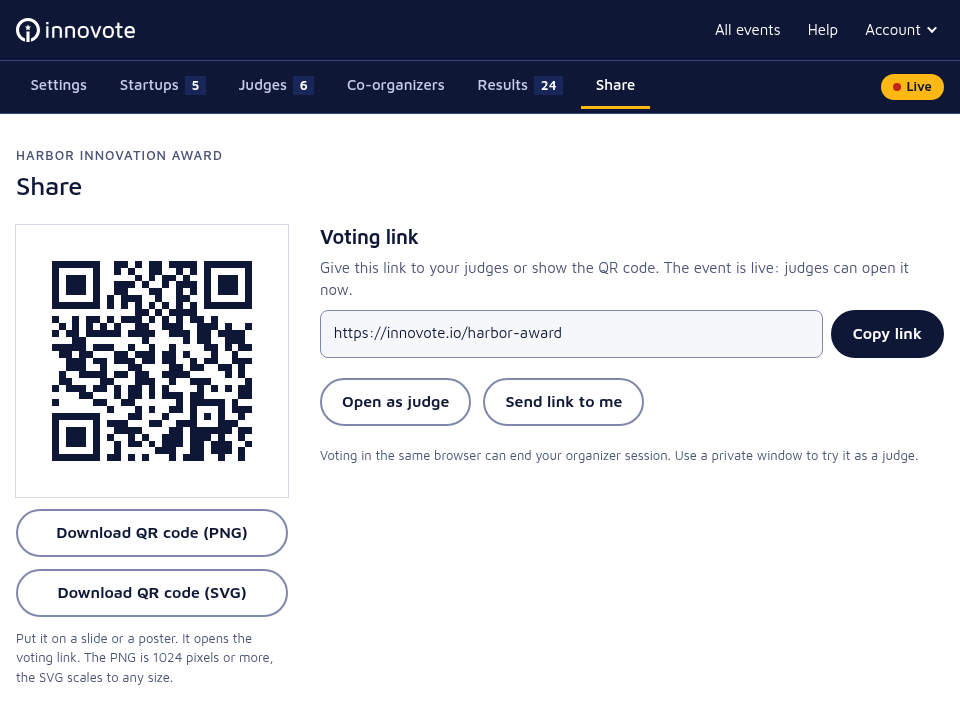
Open as voter (or Open as judge) opens the voting pages in a new tab. Voting in the same browser can end your organizer session, so use a private or incognito window.
Hand out usernames and PINs
Judges tab, username and PIN sign-in
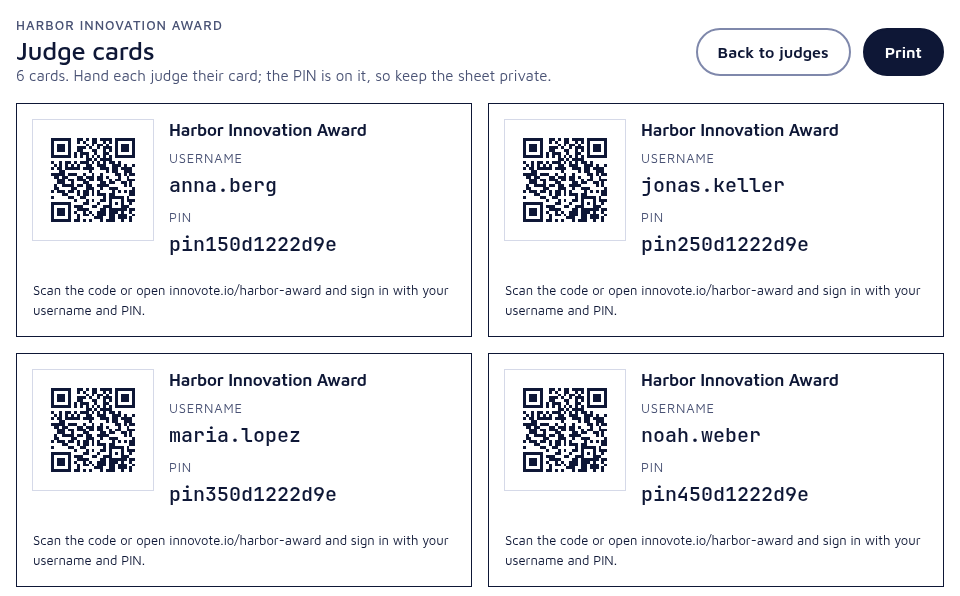
Print cards makes one card per judge with the QR code, the link, the username and the PIN; Download credentials gives the usernames, the PINs and the link as a CSV file. The PINs are on the cards, so keep the sheet private.
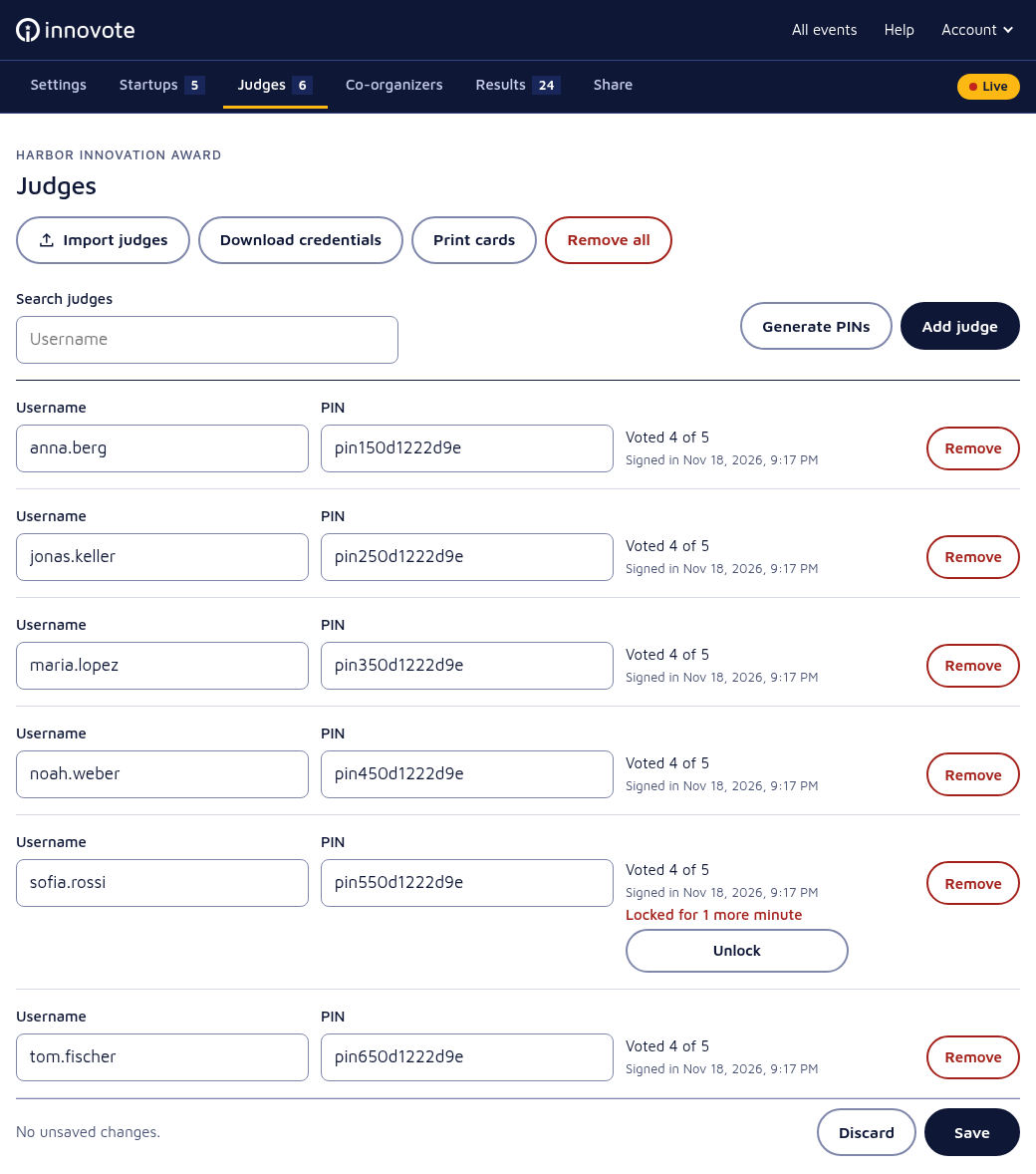
Each row of the list shows how far the person got (for a scorecard how many entries they have voted on, for single choice “Has chosen” or “Has not chosen yet”) and when they last signed in, or “Not signed in yet”.
With email self-registration there is nothing to hand out: people enter an email address, receive a personal voting link and vote through it.
When a judge is locked out
Voters or Judges tab
After 5 wrong tries for one username, that judge has to wait before the next try: 1 minute, then 5 minutes. Someone who types a username that does not exist waits the same way. A judge who is waiting shows “Locked for N more minutes” in the list (Figure 2.2b).
Press Unlock next to the name to let them try again at once, for example when somebody else guessed a judge’s username and the real judge cannot sign in during the event. Saving the list also clears the wait. You and your co-organizers can unlock people.
Follow the live results
Results tab
The results page ranks your entries while the votes come in. Open it on your own screen, or on the projector laptop if the room may watch.
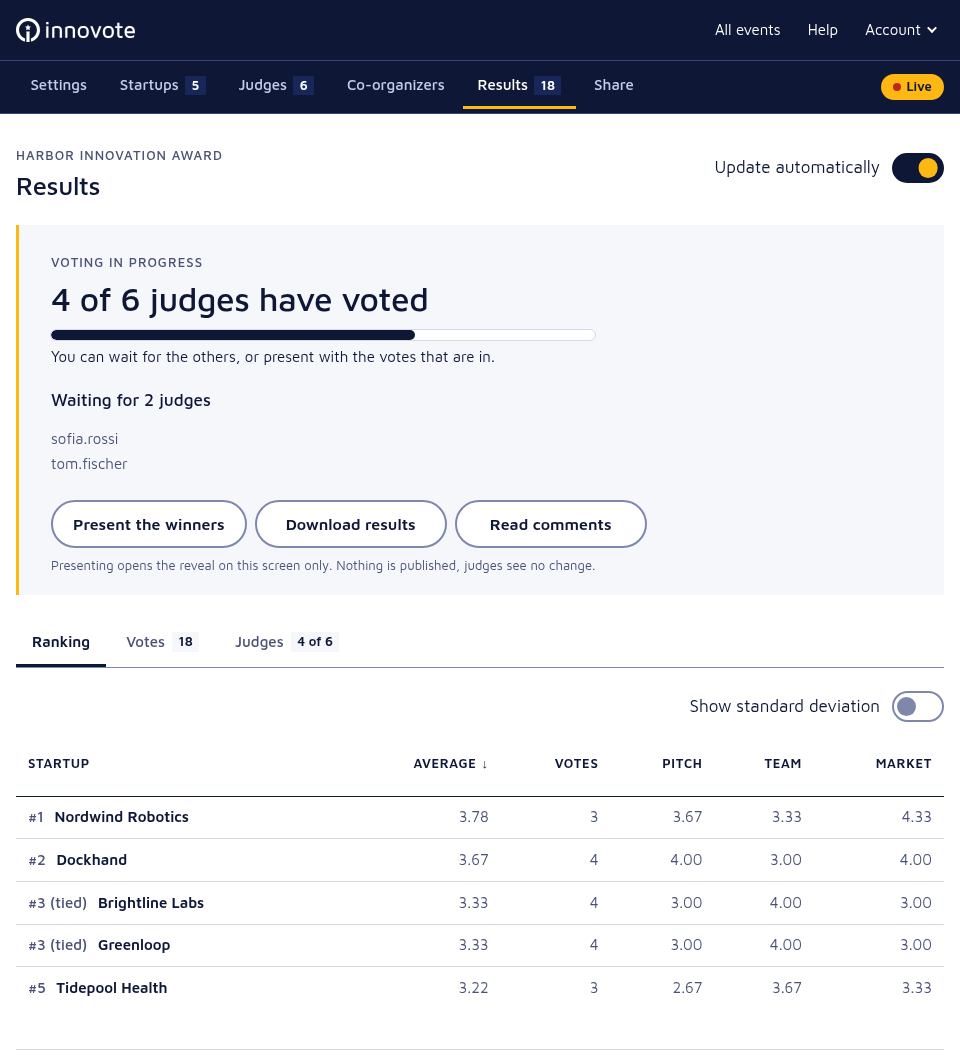
- The status panel. Whether voting has started, is in progress or everyone has voted, “4 of 6 judges have voted” with a bar, and “Waiting for …”, which folds out the names of up to 50 people who have not voted yet. Next to it: Present the winners (cue 2.5), Download results and Read comments.
- Update automatically. On when you open the page: the numbers and the tables update every 10 seconds as votes come in. Point at the switch to see when the page last updated. While the switch is off, Update now updates them once.
- A warning at the top says so while “Show the ranking on the voting page” is on, with a link to turn it off in the settings.
The three tabs
Ranking is the table. Click a column heading to sort by it. Entries with the same score share a place, and entries nobody voted for yet are listed last, without a place. For a scorecard, turn on Show standard deviation for the spread of the scores. A single choice event shows only the entries and their votes.
- Average (scorecards). First the average per criterion, then the average of those averages. With weights, criteria count in proportion to their weight. If you chose “Show totals as a sum of weighted points” (cue 1.3), the column shows that sum instead. Voters must score every criterion before they can save.
- Votes. The number of voters who voted on this entry. Each voter counts once per entry, even when the vote has several criteria. For single choice this is the ranking.
- Criteria columns (scorecards). The average of all submitted votes in that criterion.
Votes (scorecards only) shows how many voters scored each entry, fewest first. An entry scored by fewer than half of the voters who voted says “Few votes”: its place can still move.
Voters or Judges shows how many entries each person scored, with “Not started” or “Unfinished” next to the ones who are not done, so you know whom to remind. For single choice it lists the voters who have not voted yet.
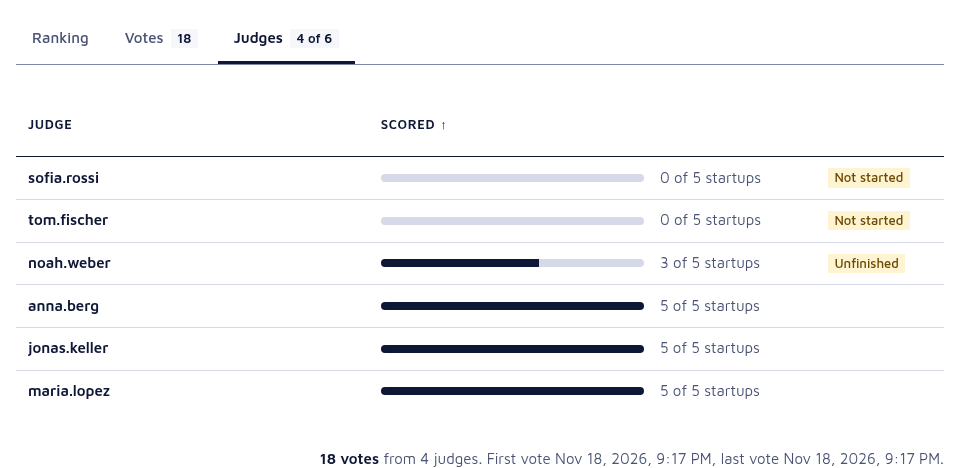
Reset all votes is in the Danger zone at the bottom of the tab, for the owner only. It removes every vote and keeps the entries and the voters.
Reveal the winner
Results tab, Present the winners
Present the winners opens a page for the award ceremony. Open it on the projector laptop when you are ready.
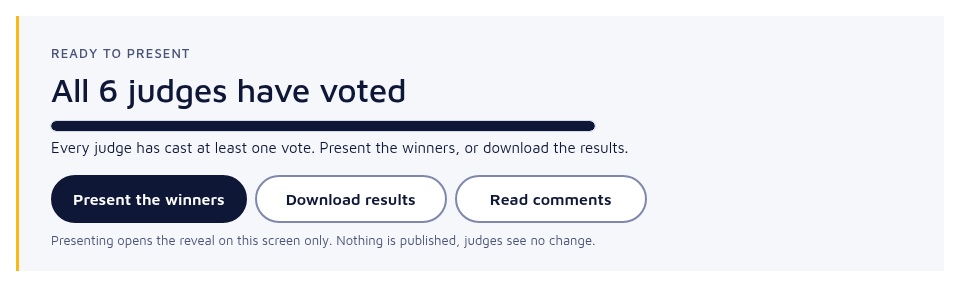
- Open. A short note says that presenting publishes nothing; Open the reveal goes on.
- Fill the screen. Press F or Full screen.
- Reveal. It starts with “And the winner is” and shows third, second and first place one at a time: press Reveal next, Space or the right arrow.
- Step back. Back or the left arrow.
- The whole ranking. Show the full ranking or R.
Entries with the same score share a place.

If you would rather keep the screen dark, keep the results on your own screen and read out the winner: voters see no ranking unless you turn on “Show the ranking on the voting page”.