

The award is handed out. Keep the scores for sponsors and prizes, close the vote, and set up the next round in minutes.
Download the results as Excel
Results tab, Download results
Download results gives an Excel file with three sheets:
- Summary. One row per entry with votes: the total, the standard deviation, the votes and each criterion (for single choice only the votes). It is not sorted and has no places, so sort it in Excel.
- Details. Every single vote, including the comments.
- Users. The voters or judges, with the dates they agreed to your terms and privacy policy.
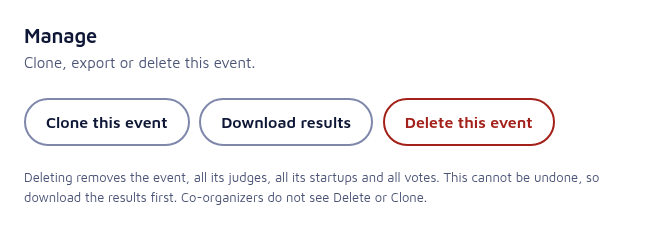
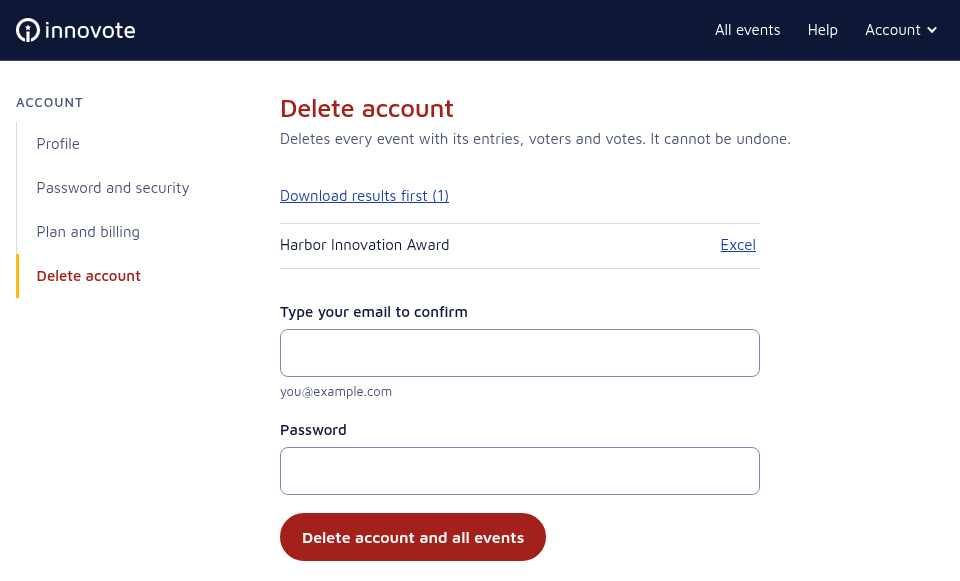
The same button is on the Comments page and in Settings, Manage (Figure 3.4a), and deleting an event or your account offers it first.
Read the comments
Results tab, Read comments
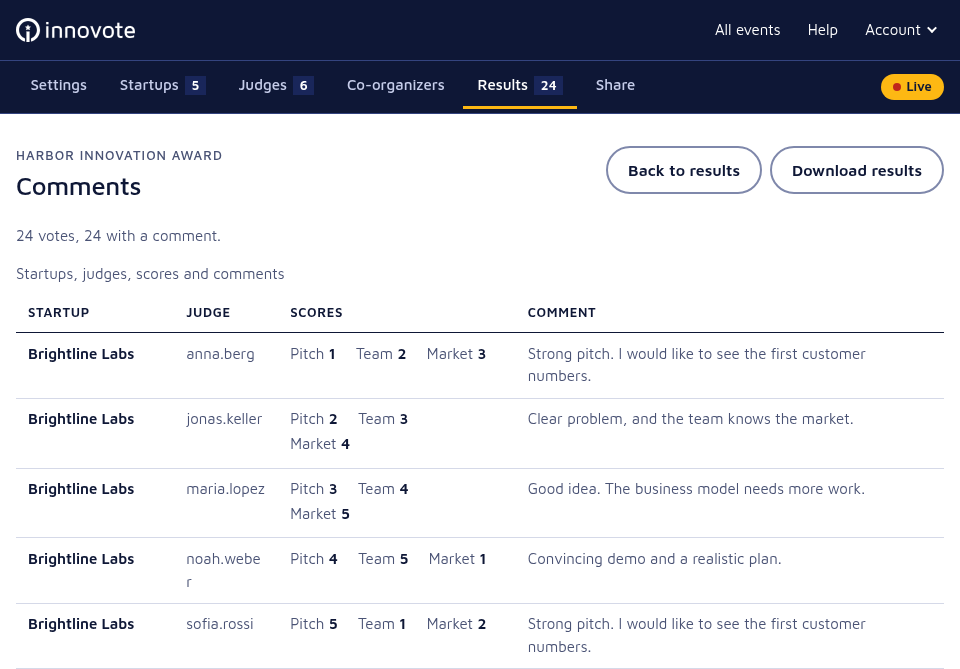
Read comments opens the Comments page, which lists every vote, one by one: the entry, the voter, the scores and the comment, or “No comment”. It is the place to read the feedback judges left for the teams. Comments are only collected when you turned them on (cue 1.3).
Close voting
Settings, Live switch
Open Settings and switch Live off in the panel on the right (at the top on a phone); you are asked first. People who open the voting link then see “Voting is not open right now”, and no more votes are accepted. You keep full access to the event, the results and the export.
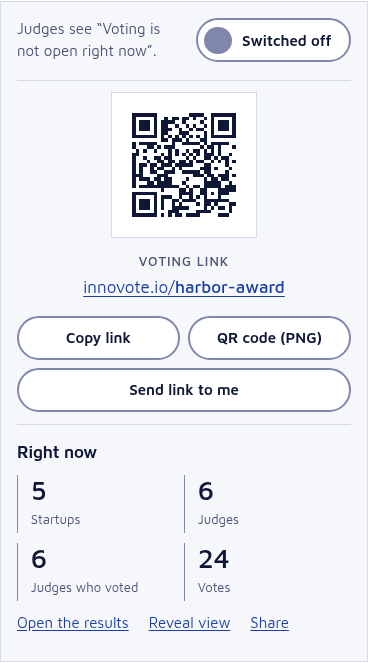
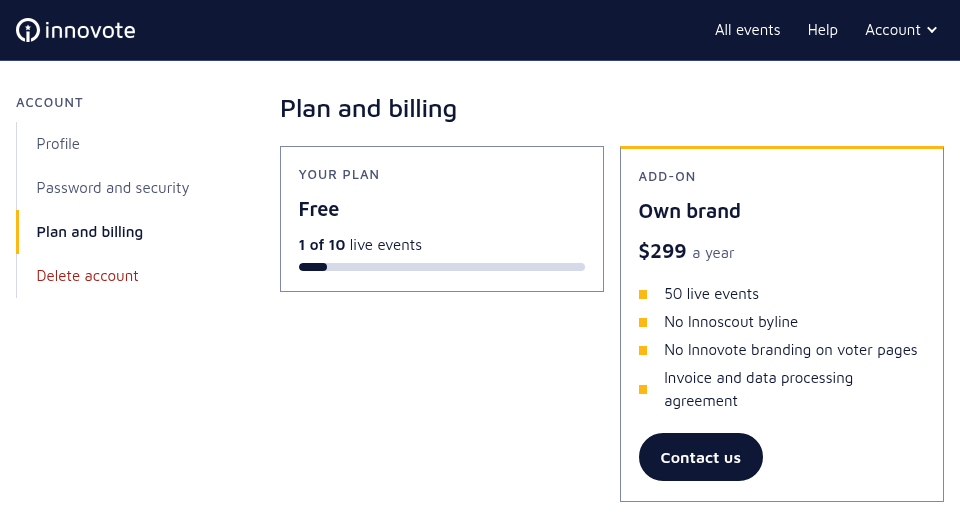
A switched-off event does not count toward your live events (10 on Free, 50 with Own brand), so it can stay in your account. Switching it on again counts it again.
Clone the event for next time
Settings, Manage, Clone this event; or Clone in your events list (owner only)
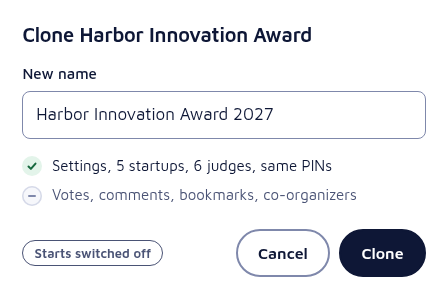
Clone this event (or Clone next to a switched-off event in your events list) opens a dialog that asks for the new name and says what is copied.
- Copied: the settings, with the language and the look of the voting pages, the entries and the voters or judges. Judges keep their usernames and PINs.
- Not copied: votes, comments, bookmarks and co-organizers.
- The copy gets its own voting link and starts switched off, also when the event you copy is live. Switch voting on when the next round begins.
That makes the next round or next year’s final a matter of minutes: change what is new, then share the new link.
The list of past events
Settings, Basics
When you switch an event off after it had at least two entries and three voters who voted, the list of past events on innovote.io shows its name, its logo, the month of its last vote and the number of entries, voters who voted and votes. Never the entries, the voters, the results or the voting link.
The owner or a co-organizer can turn it off at any time with the switch “Show this event in the list of past events on innovote.io”; the list shows the change within five minutes. The switch starts:
- on for new events on the free plan;
- off for events created before this feature;
- as in the event it copies, for a clone.
Own brand events are never listed.
Delete an event or your account
Owner only: Settings, Manage, and Account, Delete account
Delete this event (Settings, Manage, Figure 3.4a) removes the event with all its voters, entries and votes. It cannot be undone, so the dialog offers to download the results first. Co-organizers do not see it.
Your account has a page for each part, reached through Account at the top right: Profile (your email address), Password and security, Plan and billing and Delete account. Plan and billing shows your plan and how many of your events are live, and the Own brand add-on with Contact us.
Delete account is its own page. It deletes your account and everything in it: every event with its entries, voters, votes, comments and co-organizer links. You can download the results of each event there first, and you confirm with your email address and your password.
To clear only the votes and keep the event, use Reset all votes at the bottom of the Results tab.